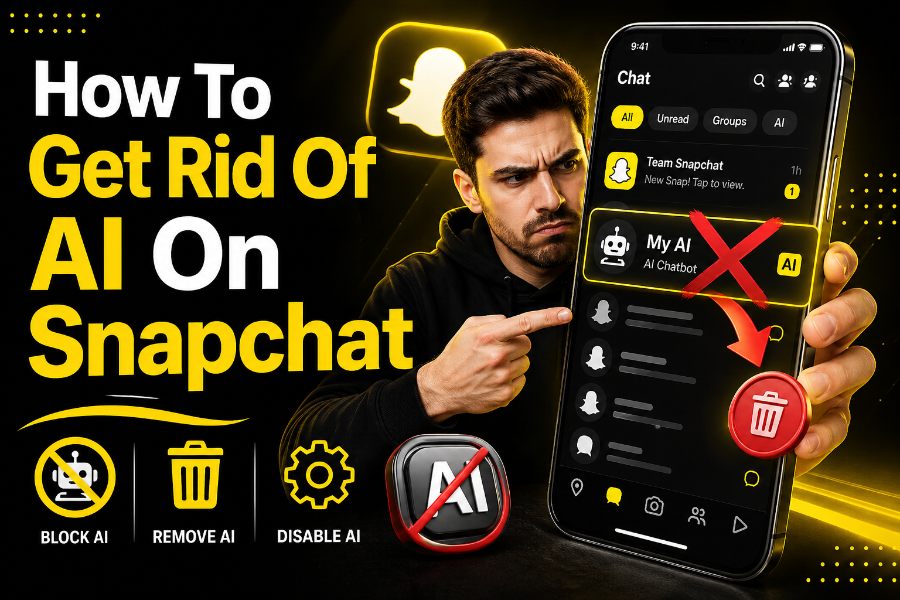
If you’re wondering how to get rid of AI on Snapchat, you’re not alone. Many users find the My AI feature intrusive, especially when it stays pinned or interacts unexpectedly.
This guide walks you through practical, proven steps to remove or limit AI on Snapchat. By the end, you’ll regain control over your chat feed, privacy settings, and overall Snapchat experience.
Why Snapchat Introduced AI And Why Users Want It Gone
Snapchat introduced My AI to enhance user interaction with personalized responses and suggestions. The feature uses conversational AI to answer questions, recommend content, and simulate human-like chats.
However, many users feel the feature is too persistent, especially when it cannot be fully removed without a subscription. Privacy concerns also play a major role, as AI can store and analyze user interactions.
You might also find AI distracting, especially when it occupies a top position in your chat feed. While tools like an instant Snapchat story viewer help users manage how they view content externally, My AI changes how interactions happen internally.
How To Remove My AI From Snapchat Chat Feed
Removing My AI from your chat feed is the most effective way to reduce its presence. While you may not completely delete it without Snapchat+, you can significantly limit its visibility.
Start by opening Snapchat and navigating to your chat screen. Press and hold the My AI chat, then tap “Chat Settings” and select “Clear from Chat Feed.”
This action removes the AI from your main chat list, making your interface cleaner. Keep in mind that this does not delete stored data, so you may still want to adjust privacy settings afterward.
Can You Fully Delete Snapchat AI
The ability to fully delete Snapchat AI depends on your account type. Free users can only remove it from their chat feed, while Snapchat+ subscribers have more control.
Even with premium access, Snapchat does not allow complete deletion of the AI system itself. Instead, you can unpin or minimize its presence more effectively.
Understanding this limitation helps you set realistic expectations. You are not removing AI entirely, but reducing how often it interacts with you.
How To Turn Off AI Data And Privacy Features
Managing your data is essential if you want to limit how AI interacts with your information. Snapchat collects data from chats, snaps, and even public content settings.
Go to your settings and disable options like “Use My Data for AI Improvements.” You should also clear past conversations with My AI to reduce the amount of stored information.
If you’re curious about how Snapchat tracks interactions, tools like a private Snapchat viewer highlight how visibility and privacy work across different features, helping you make better decisions about your settings.
Disable AI Features Like My Selfie And AI Snaps
Snapchat has expanded AI beyond chat into features like My Selfie and AI-generated snaps. These features use your images to create AI-driven edits and content.
To disable them, go to Settings, find “My Selfie,” and turn off AI-related toggles such as “AI Snaps” and “See My Selfie in Ads.” This reduces how your image is used by AI systems.
Many users report that disabling these features improves privacy and reduces unwanted AI-generated content. It also stops automatic edits that may feel intrusive.
How To Stop AI From Using Your Public Content
Snapchat may use public stories and content to train or improve its AI systems. If you want to limit this, you need to adjust your content-sharing preferences.
Navigate to privacy settings and disable “Allow Use of Public Content.” This ensures your stories are not used for AI training or recommendations.
Understanding how your content is used is crucial, especially if you frequently post stories. It gives you more control over your digital footprint.
What Reddit Users Reveal About Snapchat AI Issues
Real user experiences provide valuable insight into how Snapchat AI behaves. Many users complain about unexpected AI edits and persistent features that are difficult to disable.
Some users found that deleting their selfie data helped reduce AI-generated edits. Others reported that certain features reappeared after updates, showing inconsistency.
These experiences highlight the importance of regularly reviewing your settings. Snapchat updates can re-enable features, so staying vigilant is key.
Clearing Conversations With My AI
Even after removing My AI from your chat feed, past conversations may still exist. Clearing these chats ensures your interaction history is minimized.
Go to your chat settings and delete conversations with My AI manually. This reduces stored data and limits future personalization.
Regularly clearing chats is a good habit, especially if you prioritize privacy. It ensures your data footprint remains minimal.
Managing Notifications From Snapchat AI
Notifications from My AI can be disruptive if left unchecked. You may receive suggestions, reminders, or prompts that feel unnecessary.
To stop this, go to notification settings and disable alerts related to My AI. This prevents the AI from interrupting your experience.
Reducing notifications helps you focus on real interactions rather than automated suggestions. It also improves overall app usability.
Understanding The Limits Of Removing AI
It’s important to understand that Snapchat AI is integrated into the platform. This means complete removal is not currently possible for most users.
However, you can control how often you interact with it and how much data it accesses. These adjustments significantly reduce its impact.
Think of it as managing rather than eliminating AI. This mindset helps you use Snapchat more comfortably.
Alternative Ways To Use Snapchat Without AI Interference
If AI features still bother you, consider adjusting how you use Snapchat. Focus on direct messaging, private stories, and selective interactions.
You can also avoid engaging with AI prompts entirely. The less you interact with My AI, the less relevant it becomes in your experience.
This approach allows you to enjoy Snapchat’s core features without unnecessary distractions. It gives you a more traditional social media experience.
Tips To Keep Your Snapchat Experience Clean
Keeping your Snapchat experience clean requires consistent effort. You need to review settings, clear chats, and disable unnecessary features regularly.
Here are some quick tips:
- Remove My AI from chat feed
- Disable AI data usage
- Turn off My Selfie features
- Clear conversations frequently
Following these steps ensures your app remains clutter-free. It also protects your privacy over time.
Conclusion
Getting rid of AI on Snapchat is not about deleting it completely but controlling how it interacts with you. By removing it from your chat feed, disabling AI features, and managing your privacy settings, you can significantly reduce its presence.
You now have a clear roadmap to limit AI’s impact on your Snapchat experience. Stay proactive by reviewing your settings regularly, especially after updates, to ensure unwanted features don’t return.
FAQs
How Do You Get Rid Of AI On Snapchat Completely
You cannot fully delete Snapchat’s My AI without Snapchat Plus, but you can remove it from your chat feed. Long-press the AI chat, open settings, and clear it. Adjust privacy controls to limit data usage and reduce interactions effectively.
Can You Unpin My AI From Snapchat Chat Feed
Yes, you can unpin My AI by pressing and holding the chat, selecting chat settings, and choosing to clear or unpin it. This removes it from your main screen, making your chat interface cleaner and less distracting during daily use.
Does Removing My AI Delete Your Data
No, removing My AI from your chat feed does not delete your stored data. Snapchat may still retain past conversations for personalization. You should manually clear chats and adjust privacy settings to minimize how your information is used by AI.
How Do You Stop Snapchat AI From Responding
To stop Snapchat AI from responding, avoid engaging with it and remove it from your chat feed. Disable notifications and AI-related features in settings. Reduced interaction signals the system to deprioritize AI suggestions and conversations over time.
Can You Turn Off AI Features Like My Selfie
Yes, you can disable AI features like My Selfie in Snapchat settings. Turn off options such as AI Snaps and selfie-based ads. This prevents the app from generating AI content using your images and enhances your privacy and control.
Why Does Snapchat Keep Adding AI Back
Snapchat updates can re-enable AI features or adjust settings automatically. This happens because AI is deeply integrated into the platform. Regularly reviewing your settings after updates helps ensure unwanted AI features do not return or become active again.
How Do You Delete Conversations With My AI
To delete conversations, go to your chat list, press and hold the My AI chat, and select clear conversation. This removes chat history and reduces stored data, helping limit personalization and improving your privacy within the Snapchat app experience.
Can Snapchat AI Access Your Personal Information
Snapchat AI can access information you share in chats and certain public content, depending on your settings. It uses this data to improve responses. Limiting permissions and disabling data-sharing options helps protect your personal information from unnecessary AI processing.
Is Snapchat AI Safe To Use
Snapchat AI is generally safe but raises privacy concerns for some users. It processes conversations to deliver responses and recommendations. Understanding settings and limiting data sharing ensures a safer experience while still allowing you to use Snapchat normally.
What Is The Best Way To Reduce AI On Snapchat
The best way to reduce AI is to remove it from your chat feed, disable related features, clear conversations, and adjust privacy settings. Combining these steps minimizes AI presence and ensures a more traditional, distraction-free Snapchat experience.